Communication Forwarding
In order to support Caregivers calling in-bound to the Central Monitoring room, forwarding is required. Call forwarding, or call diversion, is a telephony feature of hospitals telephone switching systems which redirects a telephone call to another destination. The existing direct dial phone number of central monitoring unit or group will need to be forwarded to new phone number provided by Spacelabs SafeNSound. Forwarding this number allows the inbound call to reach the SafeNSound desktop client, ring and become answered by a Monitor Technician. We also request central monitoring unit or group be assigned to a new call group with a direct dial number to be used as backup inbound call method. This supports Quick Messages as well as Voice Calls.
1. Hospital forwards existing Desk Phone number to SnS Twilio .
Typically, this is a VoIP phone with a virtually assigned phone number This can be lifted off the phone and replaced by a new phone number in step 2.
2. Hospital replaces the Desk Phone with a new number.
This allows calls to flow into SnS as well as missed calls to flow to a backup number that utilizes the new desk phone number. The hospital’s Tele-Communications contact will need to be engaged to accomplish this task.
Flow Diagram:
Communication Networking and Firewall
SafeNSound utilizes Twilio to programmatically make and receive phone calls. Please insure all IP’s and Ports listed below are open on the monitor technician PC’s. This is required for the communications to work properly. Not applying this configuration could delay communications or cause a complete failure:
Applications using Twilio's Voice SDKs require connectivity to Twilio's infrastructure to be able to place and receive calls. As shown in the diagram below, two types of connections are required: Signalling and Media.
The signalling connection is a secure TLS connection that is used for sending and receiving control information to set up calls.
The media connection is a secure SRTP (Secure Real-time Transport Protocol) connection that is used to send and receive audio.
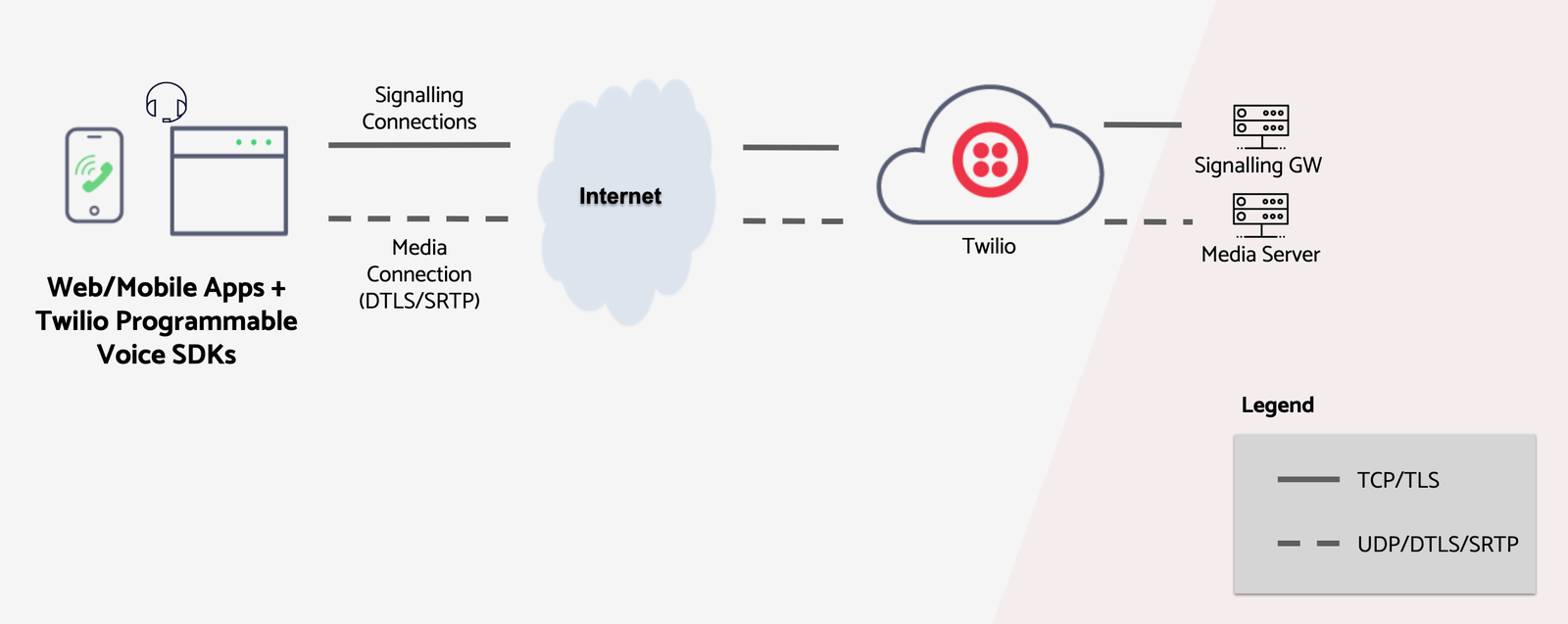
Twilio's Programmable Voice infrastructure is deployed in edges all over the world. By default, the SDKs use Global Low Latency (GLL) to determine the optimal Twilio edge to connect to.
Firewall Configuration
In a typical organization network setup, a firewall is used to protect the private network hosts from the Internet. Firewalls are configured with rules to block or allow traffic to and from Internet destinations based on direction, protocol, and IP address.
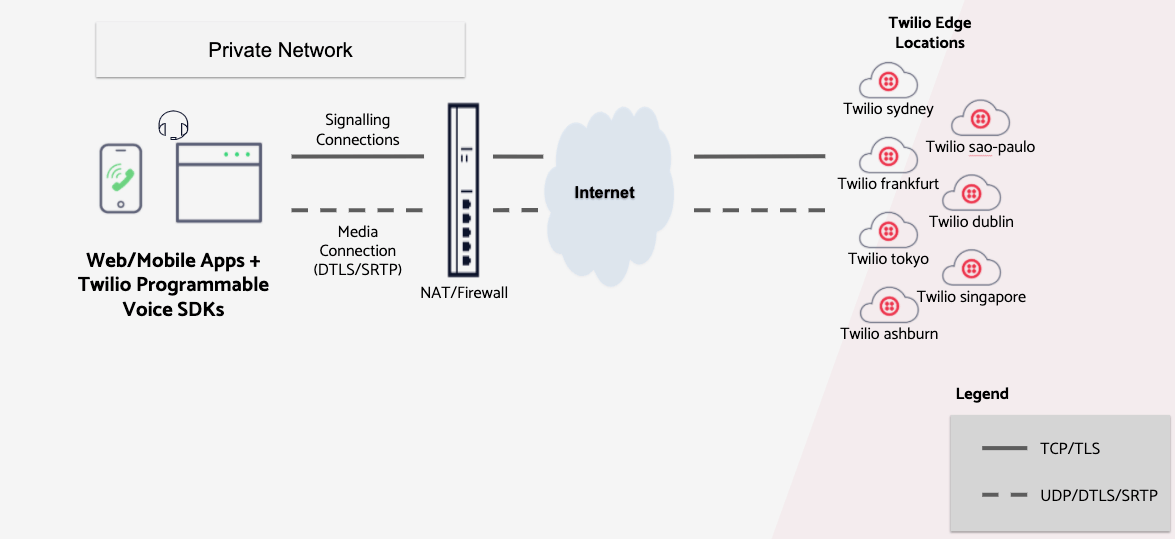
To access Twilio, your firewall should allow outgoing TCP and UDP traffic from your applications to Twilio's infrastructure and allow return traffic in response. Twilio will never initiate a connection to the SDK applications. Therefore, the firewall should not allow externally initiated connections back into the network.
In the Connectivity Requirements sections that follow, the required destination IP addresses and ports are listed. Your firewall should be configured to allow connectivity to the Media Servers and the Signalling Gateways corresponding to the SDK you are using.
Voice Media Server Connectivity Requirements
| Secure Media (ICE/STUN/SRTP) Edge Locations | Protocol | Source IP | Source Port † | Destination IP Ranges | Destination Port Range |
| roaming (gll) | UDP | ANY | ANY | 168.86.128.0/18 | 10,000 - 60,000 |
† The SDK will select any available port from the ephemeral range. On most machines, this means the port range 1,024 to 65,535.
Signaling Connectivity Requirements
| Your Intranet | Allowed destinations | ||||
| Protocol | Source IP | Source Port † | Destination | Destination Port | |
| Voice JavaScript SDK | |||||
| Secure TLS connection to Twilio signalling Gateway | TCP | ANY | ANY | chunderw-gll.twilio.com, chunderw-vpc-gll.twilio.com, voice-js.roaming.twilio.com | 443 |
| Secure TLS Insights logging gateway | TCP | ANY | ANY | eventgw.twilio.com | 443 |
| Mobile Voice SDKs | |||||
| Secure TLS connection to Twilio GLL Signalling Gateway | TCP | ANY | ANY | chunderm.gll.twilio.com | 443 |
| Secure TLS to Insights Gateway | TCP | ANY | ANY | eventgw.twilio.com | 443 |
| Secure TLS to Registration Server | TCP | ANY | ANY | ers.twilio.com | 443 |
† The client will select any available port from the ephemeral range. On most machines, this means the port range 1,024 to 65,535.
Network Bandwidth Requirements
| Bandwidth (Uplink/Downlink) | Opus*: 40kbps / 40kbps |
| PCMU: 100kbps / 100kbps | |
| Latency (RTT) | < 200ms |
| Jitter | < 30ms |
| Packet Loss | < 3% |
* Opus is the default codec for Mobile.
Global Low Latency requirements
GLL is an AWS Route53 feature that resolves a hostname to the edge location with the least latency. This removes the need for the application developer to determine where the end user is connecting from or manually choosing which edge to connect to.
However, in order for GLL to give accurate results, the intermediate DNS must:
- Support RFC 7871 - Client Subnet in DNS Queries.
- Reside in the same edge as the SDK endpoint. For example, a host in the US configured with a VPN to Europe or configured with a DNS server that resides in Europe will result in connecting that host to Twilio edge in Europe
Use Twilio's Network Traversal Service (NTS) when UDP ports are disallowed
For best audio quality, your firewall should allow your local hosts to initiate the connection to twilio and send UDP (DTLS/SRTP) traffic to the Twilio Media servers.
However, If your network policy prohibits UDP connectivity, you can utilize Twilio's Global Network Traversal Service (NTS) to establish media connectivity over TCP or TLS. Please refer to the NTS documentation for a list of TURN servers and ports that will also need to be allowed.
Note, using TURN incurs extra charges as per NTS pricing. Refer to Global Network Traversal Service for more information.
Network Diagnostics and Testing
If you're experiencing issues with calling here are some steps you can take to diagnose the problem:
- On the caregiver's workstation go to https://networktest.twilio.com/ and ensure all voice tests pass.
- Check Your Internet Connection: Ensure that your internet connection is stable and working properly.
- Restart Your Device: Sometimes, simply restarting your computer or device can resolve connectivity issues.
- The Mic and Speaker must be plugged into the PC before launching the desktop application.
Mic Access Issues
Confirm that your device policy allows mic access for all Twillio and SafeNSound URLs. If access is blocked the call when not be successful and will abruptly disconnect.
Speaker Access Issues
Confirm that your device policy allows speaker access for all Twillio and SafeNSound URLs. If access is blocked the call when not be successful and will abruptly disconnect.
External Call Testing
If you continue to experience issues with calling the next step is to do an external call test.
1. Enter a phone number on a patient to an outside number in SafeNSound. Please refer to this documentation for details.
2. Log into SafeNSound under a Monitor Tech role and attempt to call the number that was setup.
3. Call the SafeNSound assigned number to try and reach the Monitor Tech.
4. If the call is still not able to be completed with audio. Call Spacelabs Healthcare Global Tech Support.